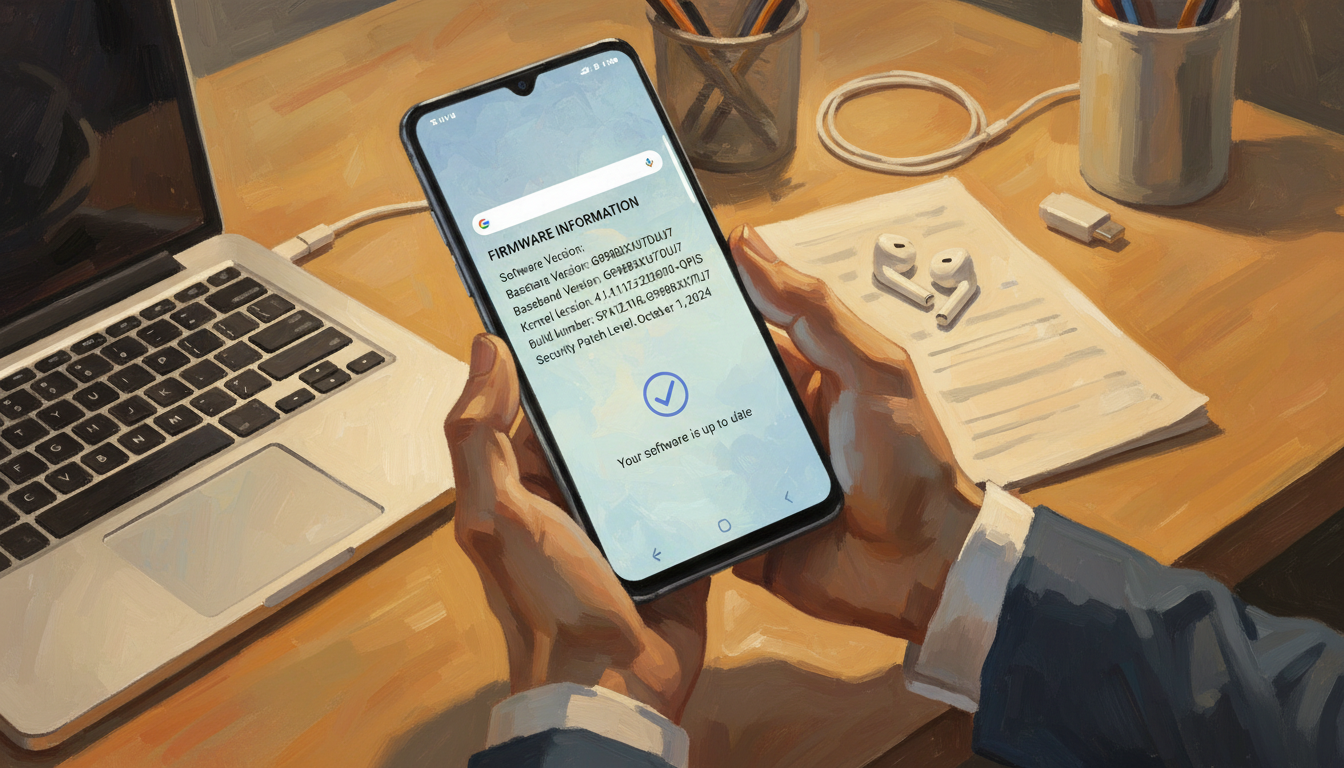
This guide is for Samsung users in the United States. It helps you check your device’s integrity and avoid scams. Firmware controls a device’s hardware and is the base for Android and Samsung’s One UI.
Knowing how to check your Samsung firmware is key. It ensures your device runs original Samsung firmware, not a modified version that could be risky.
In this article, we’ll show you how to find your device model number and check firmware and baseband details. We’ll also use official Samsung resources like the Samsung Support app and Smart Switch. You’ll learn about firmware updates, common features, basic troubleshooting, and how to spot scams.
Incorrect or tampered firmware can be a big problem. It can create security risks, void warranties, and disable important features. We focus on credible sources and practical checks to help you verify authenticity with confidence.
Key Takeaways
- We will teach you how to check Samsung firmware and check baseband version on-device.
- We emphasize verifying original Samsung firmware using official tools like Smart Switch and the Support app.
- Knowing your Samsung firmware version helps prevent scams, protect data, and preserve warranty coverage.
- We will include steps to find the device model number before checking firmware details.
- Follow verified Samsung resources and avoid untrusted update prompts or third-party firmware offers.
Why It’s Important to Know Your Samsung Firmware Version
Firmware is the software that connects hardware and the operating system of a device. Knowing how to check Samsung firmware helps us understand the code that starts the device. It also runs radios and connects different parts together.
Understanding Firmware Basics
Firmware is the software that starts the device and connects hardware and apps. On Samsung phones, it includes the bootloader, modem, recovery, and system build. The system build shows a build number and security patch level.
We make it clear what each term means. The build number is a specific system image. The Android version is the OS level. The security patch level shows monthly fixes. The baseband or modem version handles radio and cellular stacks.
Original Samsung firmware is digitally signed and verified by Samsung. If firmware is not properly signed, it can cause problems. Unofficial or modified images can disable secure payments and block warranty service.
The Risks of Outdated Firmware
Running old firmware can lead to several risks. Security vulnerabilities in kernels or modem code can expose devices to exploits. App compatibility and carrier features may also degrade without updates.
Outdated firmware can also harm battery life and performance. New builds often include fixes that improve stability and efficiency. Missing updates can cause slowdowns and unexpected reboots.
There is also a risk of fraud targeting outdated systems. Attackers may claim a device needs a paid update or push fake packages that install malware. Regular checks for original Samsung firmware and baseband versions can reduce these risks.
We advise against installing unofficial firmware or unlocking the bootloader. This can void warranty and trip Knox. It may affect repairs or trade-in value. We recommend routine checks for firmware security and current patches to keep devices safe and supported.
How to Find Your Device Model Number
Before we check Samsung firmware, we need the exact device model number. Knowing the model number helps us find the right firmware. This avoids installing the wrong build. Below, we explain how to find your Samsung model number on your phone and from the original packaging.
Using the Settings App
Open Settings and tap About phone or About device. In many One UI versions, the model number is clearly labeled: Model number or Model.
Some phones list model info under About phone > Legal information or About phone > Status. If it’s not there, check those submenus.
Common formats include consumer lines like SM-G99x for Galaxy S, SM-Axxy for Galaxy A, and SM-Nxxy for Galaxy Note or Tab. Copy the exact string, including any letters after model code SM- when checking Samsung firmware on Samsung’s site or in firmware databases.
Note other useful identifiers in Settings: IMEI, serial number, build number, and baseband version. We will use these later to verify the correct firmware build for your device.
Checking the Device Back or Box
Older Samsung phones often list the model on the rear cover. Modern glass designs may omit this detail. If the phone lacks a rear label, look under the SIM tray on some Galaxy models.
The retail box usually shows clear label fields: model number, model code SM- entry, and region or carrier variant. Read the label to find whether the unit is US unlocked or tied to a carrier.
Keep the box or jot the model number before you attempt firmware checks or downloads. An exact match prevents us from installing incompatible or unofficial firmware. It helps us confidently check Samsung firmware for updates or restores.
| Location | What to Look For | Why It Matters |
|---|---|---|
| Settings > About phone | Model number, build number, IMEI, baseband | Provides exact device model number for firmware searches and verification |
| About phone > Legal/Status | Alternate placement of model and regulatory info | Helps when main About screen omits full model string |
| Back of device or under SIM tray | Printed model number or regulatory labels | Quick physical check when device powers off or is locked |
| Original retail box | Model number, model code SM- entry, region/carrier | Confirms variant and region for correct firmware downloads |
Accessing the Firmware Information on Your Device
Before we dive in, let’s get a quick overview. The Settings app is where you find the firmware details. This includes the build number and baseband entries. These steps work for most Samsung Galaxy models, including tablets.
To get to the firmware info, go to Settings. Look for About phone or About device. On many phones, it’s Settings > About phone > Software information. For older Androids, it’s Settings > System > About phone.
Use Settings search for “About” if you can’t find it. This will take you directly to the right screen.
We’ll cover the fields in Software information and why they’re important. You’ll see Android version, One UI version, build number, security patch level, and baseband version. Each field helps when matching your device to official firmware or troubleshooting.
The build number is crucial for matching firmware. It shows the exact build. Android version and One UI version tell you the software generation and Samsung’s interface layer.
The security patch level shows the latest security updates. The baseband version controls the cellular radios. We often check this when troubleshooting connectivity issues.
It’s a good idea to save these values for later. Take a screenshot or write them down. A screenshot makes checking with Samsung’s firmware pages easier.
Watch out for signs of modified firmware. If entries are off or show tampering, the device might not be original. Always confirm the build number and baseband version before asking for help or downloading software.
Using the Samsung Support App
The Samsung Support app is key for getting device details and official advice. It helps us check Samsung firmware and see if our phone has original Samsung firmware. Just follow a few easy steps to get the app and see your device’s info.
To get the app, open Google Play Store or Galaxy Store and search for “Samsung Members” or “Samsung Support.” Some Galaxy phones come with Samsung Members already installed. First, check your apps. Tap Install, then sign in with a Samsung account to use all the app’s features.
When setting up, we see privacy and permissions. The app needs device info to offer custom diagnostics, warranty checks, and updates. Giving permissions lets the app know your device and suggest the right firmware.
Downloading and Installing the App
Search for Samsung Members or Samsung Support in the store and install it. Sign in with your Samsung account to access all device tools and support chat.
Locating Firmware Details in the Support App
Open Samsung Members, then tap Support or My device. You’ll see your model number, software version, and security patch level. This makes it easy to find your Samsung model number and check the firmware.
Use the app’s diagnostics to check for updates, run hardware tests, and see update suggestions. If the firmware looks off or an update fails, you can schedule service at a Samsung center or contact support from the app.
The app gets data from Samsung services, making it a reliable way to check firmware. It helps avoid scams from third-party sources.
Steps to Check Firmware via Samsung’s Website
Before we start, it’s best to use official Samsung sites like Samsung.com or the Samsung Support pages. These sites have the latest firmware and security updates for different regions and carriers. They help us make sure we’re using the right firmware for our device.
Visiting the Samsung Support Site
First, open Samsung Support in your browser. Type in your device’s model number in the search box. This will take you to the exact product page. The page for major models lists security patches and firmware history that we can trust.
Official pages offer downloads, changelogs, and tips on when to use Smart Switch. It’s important to use these sources to check firmware and avoid unknown downloads.
Finding Your Device Model on the Support Page
Here’s how to find your model and firmware:
- Go to Samsung Support and search for your model number.
- Choose the exact model and variant from the list to get to its support page.
- Look in the Downloads, Manuals, or Software updates section for firmware files and notes.
On the model page, compare the build number and security patch level from Samsung’s site with your device’s. If they match, your device has the official firmware.
Don’t download firmware from unofficial sites. Using Samsung’s site or authorized partners keeps our devices safe from counterfeit or malicious firmware.
| Action | Where to Look | What to Verify |
|---|---|---|
| Search model | Samsung Support search box | Exact model and variant match the device |
| Open support page | Downloads / Software updates | Published build numbers and security patch dates |
| Compare values | Device Settings > Software information | Build number equals listed release; patch level matches |
| Download firmware | Official Samsung or Smart Switch only | Only download when directed by Samsung or via Smart Switch |
Verifying Your Firmware Version with Smart Switch
Smart Switch is a safe way to check firmware on Samsung phones. It handles data transfer, backups, updates, and recovery. It connects to Samsung servers to get official info.

What is this tool and why it helps
Smart Switch is Samsung’s app for Windows, macOS, and Android. It makes backups and updates easy. It gets updates from Samsung, so we know they are real.
Steps to use the app to view firmware details
Here’s how to check baseband info and more:
- Download Smart Switch for PC or Mac from Samsung’s site and install it on our computer.
- Open Smart Switch and connect the Samsung device with its original USB cable.
- Allow the device to trust the computer and grant required permissions on the phone.
- In Smart Switch, select the option to check for software updates; the program will display current version, build number, and any available Smart Switch firmware.
- Use the backup feature before applying updates so our data stays safe.
Want to check baseband version? The app shows build number and more. If an update is offered, it’s real Samsung firmware.
Be careful with third-party tools. Avoid unofficial Odin packages unless you’re an expert. Smart Switch is safer for most users.
| Task | Action | Result |
|---|---|---|
| Install Smart Switch | Download from Samsung and run installer | Ready to connect device and check firmware |
| Connect device | Use original USB cable, grant permissions | Device recognized, communication with servers enabled |
| Check updates | Select software update in the app | Displays current build, available Smart Switch firmware |
| Verify baseband | View device details in the app or phone settings | Shows check baseband version and related info |
| Backup before update | Use Smart Switch backup feature | Protects data prior to installing original Samsung firmware |
Understanding Firmware Updates and Their Benefits
We keep our devices secure and smooth by paying attention to firmware updates. These updates from Samsung and carriers fix issues and add new features. It’s important to know what to expect and how to spot an official update.
Let’s look at the main benefits of firmware updates. They close security holes and stop malware. This protects our personal data. They also make our devices more stable and perform better, reducing crashes and app freezes.
Battery life often gets better with these updates. Bug fixes solve problems that slow or drain the phone. Updates also let new apps work on older models. Carrier and regional updates improve network performance.
Benefits of Keeping Firmware Up to Date
It’s wise to check your device regularly for updates. This keeps your device safe from known threats. It makes mobile banking, email, and messaging safer.
- Security: monthly or quarterly patches that fix kernel and protocol flaws.
- Stability: fewer crashes and smoother multitasking.
- Battery: targeted optimizations that extend daily runtime.
- Compatibility: support for new apps and services, plus carrier features.
Carrier and regional updates can add special features. They might include network improvements tied to baseband updates. Reading the release notes helps us understand if a build is carrier-specific or from Samsung.
Common Features in New Firmware Releases
We look for several key improvements in updates. Major Android upgrades bring new UI changes and features. Minor releases often focus on camera improvements, gesture tweaks, and accessibility enhancements.
- One UI refinements: visual polish and usability tweaks for Samsung phones.
- Camera updates: better processing, low-light shots, and stabilization.
- Modem and baseband: signal quality and call reliability improvements.
- Security fixes: kernel patches and hardening for Bluetooth and Wi‑Fi stacks.
We suggest reading Samsung’s release notes on support pages or inside Smart Switch. These notes tell us about the update’s nature and how it might change our device.
| Update Type | Typical Contents | Why It Matters |
|---|---|---|
| Security Patch | Kernel fixes, protocol hardening, Bluetooth/Wi‑Fi fixes | Reduces risk from exploits and scams |
| Maintenance Release | Bug fixes, battery optimizations, stability improvements | Improves daily reliability and performance |
| Feature Update | One UI changes, camera algorithms, new gestures | Adds functionality and refines user experience |
| Carrier/Regional Build | VoLTE/VoWiFi tweaks, network tuning, provider apps | Ensures optimal network performance for specific carriers |
Troubleshooting Firmware Issues
Firmware problems can range from small issues to major system problems. We’ll cover common symptoms, how to spot them, and basic troubleshooting steps. This is before you reach out for support.

Identifying common problems
Look out for unexpected reboots, boot loops, or trouble installing updates. Issues like missing carrier features or poor call quality often point to baseband problems. If your phone shows an incorrect build number or Knox flag changes, it might have been tampered with or has unofficial software.
Check the build and baseband details in Settings > About phone. We also run Samsung Members diagnostics for logs. Checking Knox and warranty status can show if the device has been tampered with, affecting repair eligibility.
Simple on-device steps
Try rebooting into Safe Mode to find app conflicts. Clearing the system cache can fix some errors on certain models. Make sure you have enough storage, as low space can block updates. Use a stable Wi-Fi or USB connection for downloads to avoid corrupted files.
When to seek professional help
Call Samsung support or an authorized service center for ongoing boot issues or update failures. If Knox is tripped, or if you find tampered or unofficial firmware, seek official repair. This will restore your device to its original state and protect your warranty.
Before calling for support, have your model number, IMEI, current build number, and a list of steps you’ve tried ready. Back up your data if possible. Avoid unauthorized repair shops for firmware flashing, as they can void warranties and leave your device on unofficial software.
How to Identify Scams Related to Firmware Updates
Scammers often target phone owners during update cycles. They use urgency and lack of tech knowledge to push fake files or charge for free services. Being alert helps protect our devices, data, and money.
Red Flags to Watch Out For
Be wary of unsolicited emails, texts, or calls claiming your firmware is at risk. They might ask for remote access or payment. Always confirm the person is from Samsung through official channels before giving them control.
Be cautious of websites selling “official” updates or pop-ups asking for downloads from non-Samsung sources. These can install fake firmware, breaking Knox protections or removing security features.
Messages asking you to disable security settings or install apps with too many permissions are red flags. Scammers might pretend to be carriers, third-party techs, or “Samsung Support.” They aim to lead victims to unofficial tools or payment pages.
Tips for Ensuring Official Updates
Always update through built-in paths: Settings > Software update, Samsung Members app, Smart Switch, or Samsung’s official support pages. These methods ensure you get genuine updates and avoid scams.
Before downloading, verify the source. Check URLs and sender addresses, match your device model and region, and compare build numbers and update notes on Samsung’s site. Regularly check your baseband version and software details to ensure authenticity.
If unsure, contact Samsung Support through the app or Samsung.com. Use multi-factor verification and only grant remote access if Samsung’s official process confirms it. Keep records of update dates and build numbers. Refuse any unverified third-party update offers to avoid fake Samsung firmware.
Final Thoughts on Checking Samsung Firmware
We’ve covered how to check Samsung firmware and keep our devices safe from bad updates. First, find your Samsung model number in Settings or on the box. Then, open Software information to see the build number, Android or One UI version, security patch level, and baseband version before making any changes.
To confirm these details, use Samsung Members, Smart Switch, or the official Samsung support pages. Smart Switch helps with official updates and recovery. Samsung Members offers diagnostics. Always avoid unofficial firmware sources and document your firmware details before seeking help or installing updates.
Staying informed helps us avoid scams and vulnerabilities. Regularly check for updates, subscribe to Samsung security bulletins, and keep backups to prevent data loss during troubleshooting. If an update seems suspicious in the United States, contact Samsung Support through official channels. Provide your model number, build, and baseband for quick, accurate help.
FAQ
What exactly is firmware on a Samsung phone or tablet?
Firmware is the software that starts up your device’s hardware. It’s the base for Android and Samsung’s One UI. It includes the bootloader, recovery, and system builds. It also has modem/baseband firmware and other parts that control how your device works.
Original Samsung firmware is checked and verified. But, unofficial or changed firmware might disable security, trip Knox, or mess with carrier functions.
How do we find our Samsung model number on the device?
Open Settings > About phone or About device. Look for “Model number.” On some One UI versions, the model might be under Status or Legal information.
You can also check the original retail box. Or look at the label under the SIM tray on some models. The model code and region are listed there too.
Where can we locate firmware and baseband versions on-device?
Go to Settings > About phone > Software information. There, you’ll see Android version, One UI version, and build number. You’ll also see the security patch level and baseband version.
The build number shows the exact firmware build. The baseband version shows the modem firmware, which affects cellular connectivity.
Can we use the Samsung Support or Samsung Members app to verify firmware authenticity?
Yes. Install Samsung Members or Samsung Support from the Google Play Store or Galaxy Store. Sign in with a Samsung account and open Support > My device or Device diagnostics.
The app shows model and software details. It recommends updates and runs diagnostics. It’s a reliable way to confirm original Samsung firmware because it talks to Samsung services.
How does Smart Switch help us check or restore firmware?
Smart Switch (desktop version for Windows/macOS) connects your device to Samsung servers. It checks for official updates, backs up data, and recovers devices that won’t boot.
Install Smart Switch from Samsung.com, connect via USB, and allow permissions. Use “Check for software update” to get any firmware offered by Smart Switch. It’s an official, model- and region-matched Samsung release.
Where on Samsung’s website can we compare build numbers and update notes?
Visit Samsung.com (Support) and enter your exact model number in the search box. On the model support page, look for “Downloads,” “Software updates,” or “Manuals.”
These pages list official firmware builds, security patch notes, and region/carrier specifics. Compare the build number and security patch level shown on-device with Samsung’s published values to verify authenticity.
What are the risks of running outdated or unofficial firmware?
Outdated firmware can expose your device to security risks. It can cause compatibility and performance issues. It might reduce battery efficiency and prevent carrier features like VoLTE.
Unofficial or tampered firmware may lack proper signatures. It can trip Knox (voiding warranty or repair options), disable secure features, and open the device to scams or malware.
How can we spot firmware-related scams and suspicious update offers?
Watch for unsolicited emails, texts, calls, or pop-ups demanding payment or remote access to install an “official” update. Avoid downloads from unknown sites, apps that request excessive permissions, or instructions to bypass Knox or disable security settings.
Always accept updates only via Settings > Software update, Samsung Members, Smart Switch, or Samsung’s official website. Verify sender addresses and URLs.
What basic troubleshooting steps should we try if an update fails or the device behaves oddly after an update?
Reboot the device, boot into safe mode to rule out app conflicts. Check free storage and ensure stable Wi‑Fi or USB when updating. Use Samsung Members diagnostics.
If needed, connect to Smart Switch and try recovery. Document the model number, build number, and baseband version before seeking support.
When should we contact Samsung support or an authorized service center?
Contact Samsung support if your device has persistent boot loops, repeated update failures, or evidence of tampered or unofficial firmware. If Knox is tripped or there are hardware issues after firmware changes, reach out too.
Prepare model number, IMEI, current build and baseband versions, and the steps you’ve already tried. Use Samsung-authorized centers to restore original Samsung firmware and preserve warranty where applicable.
