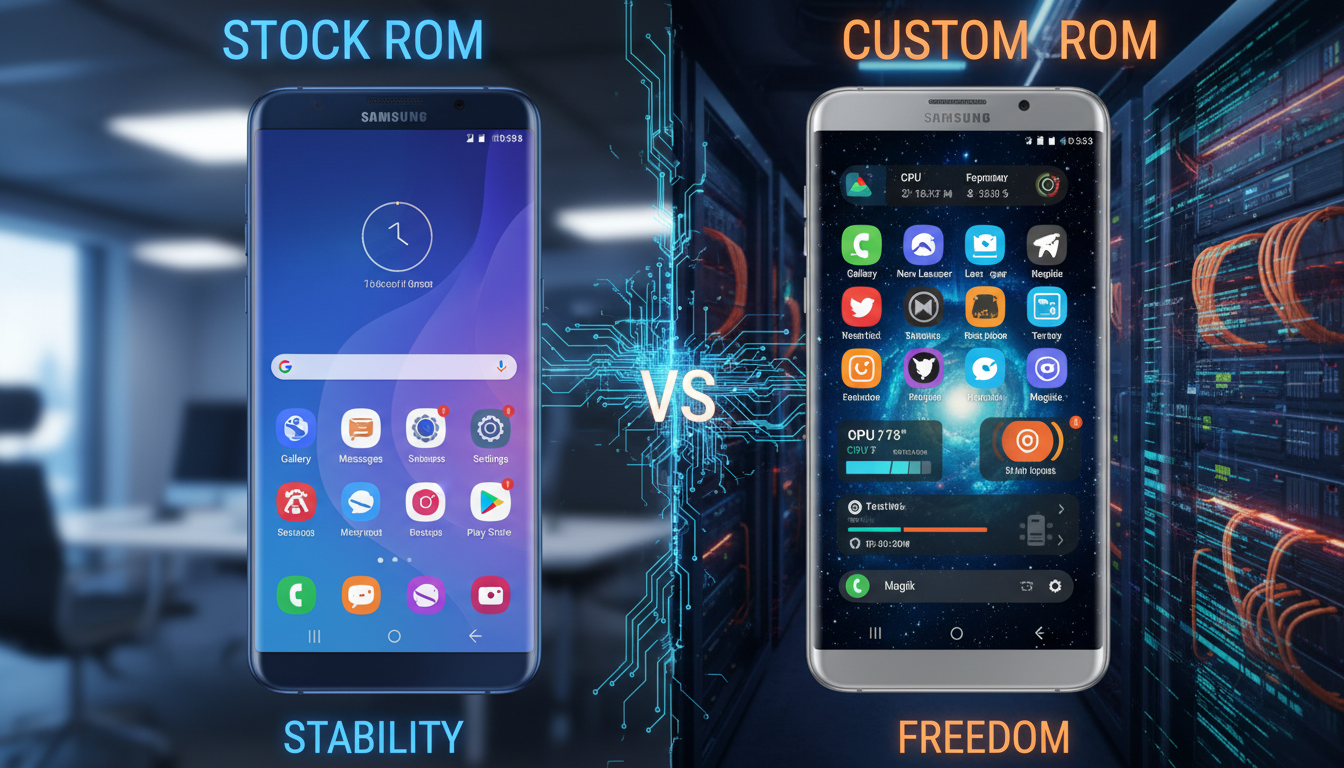
Many people wonder if they should choose a Stock ROM or a Custom ROM for their Galaxy device. We’ll look at official Samsung ROMs and custom firmware from third parties. This will help U.S. buyers make a decision. Devices like the Galaxy S, Note, A, and Z series are available on carriers like Verizon, AT&T, and T-Mobile.
Our guide is a quick list that covers the basics, pros and cons, and how each affects your device. We’ll talk about performance, customization, and security. We’ll also discuss popular custom ROMs like LineageOS, Paranoid Android, and Resurrection Remix. Plus, we’ll explore the benefits of rooting your Samsung device.
But remember, custom firmware can void your warranty and may break carrier rules. Rooting can also disable Samsung Knox and Secure Folder. We’ll explain these risks so you can make a smart choice.
Key Takeaways
- Stock ROM (official Samsung ROM) prioritizes stability and carrier support.
- Custom ROMs offer customization and potential performance gains but carry warranty and security risks.
- Carrier-locked Galaxy models may limit Samsung custom firmware options and updates.
- Root Samsung benefits include deeper control but can disable Knox and affect banking or secure apps.
- We’ll compare installation steps, compatibility, and leading custom ROMs to help you choose.
Understanding the Basics of Stock ROM and Custom ROM
Let’s start with what firmware does for Samsung phones and tablets. Knowing what Stock ROM is helps us see why manufacturers add certain features. This introduction prepares us for the next sections.
Defining Stock ROM
Stock ROM is the official Samsung ROM found on Galaxy devices. It includes One UI, carrier apps, drivers, and signed binaries for secure boot and Knox. Manufacturers and carriers update it regularly with security patches and OTA updates for certain models.
Stock firmware ensures hardware works right. It’s key for services like Samsung Pay, biometric authentication, and carrier features. These need the official Samsung ROM to work smoothly.
Defining Custom ROM
Custom ROMs are Android builds made by independent developers and communities. Projects like LineageOS show how they can remove bloatware, offer different interfaces, and extend update lifecycles beyond official support.
Installing a custom ROM means unlocking the bootloader and using a custom recovery. Root access is optional but common for advanced tweaks. We get more flexibility but lose some integrated features and vendor support.
Key Differences Between Stock and Custom ROM
Updates are a big difference. Stock ROMs get OTA packages signed by Samsung. Custom ROMs rely on maintainers and manual flashes or recovery-based installers.
Security and signing also vary. Stock images include Knox and other protections. Custom ROMs can disable or trigger Knox, changing warranty and security.
Customization and performance tradeoffs are important for users. Custom ROMs let us tweak UI and system performance. Stock ROMs focus on stability, carrier compatibility, and manufacturer support.
Warranty and support also differ. Staying on official Samsung ROM keeps warranty and carrier troubleshooting paths open. Choosing custom firmware or third-party builds may void warranty and make service visits harder.
Pros and Cons of Stock ROM
We explore the good and bad of Samsung’s stock firmware. Knowing the perks of official Samsung ROM helps users choose. A comparison with custom firmware shows the trade-offs.
Benefits of Stock ROM
Official Samsung firmware ensures stability and hardware support. Samsung tests ROMs for camera, sensor, and radio module performance.
Many models get seamless OTA updates. This keeps security patches and Android upgrades current without manual effort. It also keeps warranty valid and makes repairs easier.
Stock ROM supports Samsung services like Samsung Pay, Secure Folder, and Knox. These features rely on official, signed code for security and device integrity.
Drawbacks of Stock ROM
Carrier and manufacturer apps can add bloatware. These apps use storage and run tasks that may harm battery life or performance.
Carrier-branded units get updates slower because of testing and certification. This delay is a key point in debates about Stock ROM vs Custom ROM.
One UI offers limited customization without rooting. Custom ROMs provide kernel tweaks and advanced privacy controls. This is important in any Samsung custom firmware comparison.
End-of-life support is another consideration. Samsung stops updates for older models, leading users to custom firmware despite its drawbacks.
Pros and Cons of Custom ROM
We look into what custom firmware offers for Samsung phones and the trade-offs. Users who consider the benefits and drawbacks make informed choices for daily use and long-term ownership.
Custom ROMs attract power users and those seeking more control. They can extend a device’s life. Many community builds offer newer Android versions and security patches for unsupported models.
Custom ROMs can be lightweight and free from unnecessary apps. Removing carrier bloatware and Samsung apps can improve performance. This is especially true for older phones.
Custom ROMs offer deep customization. Users can change themes, adjust performance, and more. Rooting is often possible, giving access to advanced system settings.
Privacy and control are improved with custom ROMs. Some ROMs have stricter permission controls and optional microG support. Community support means new features are tested quickly.
However, there are drawbacks and risks. Custom ROMs can be unstable. Bugs can affect camera, modem, or biometric functions.
Security and update concerns exist. Updates depend on maintainers. Without official signing and testing, vulnerabilities may not be fixed as quickly as on stock ROMs.
Vendor service loss is a risk. Installing a custom ROM can disable Samsung Knox and other services. This affects warranty and service eligibility.
Warranty and complexity are also issues. Flashing a custom ROM can void the warranty. It may also affect trade-in eligibility. Always back up your data and follow guides to avoid risks.
User Experience: Stock ROM vs. Custom ROM
We look at how daily life changes with factory software versus community builds. We focus on speed, looks, and reliability. This helps users choose the right software for them.
Performance and Speed
Stock ROM vs Custom ROM performance changes with each device and build. Samsung’s stock firmware balances kernel, modem, and camera ISP for good results. It might win in camera tasks or network stability.
Custom ROMs can cut down on unnecessary apps and tweak the kernel for faster performance. Rooting Samsung can unlock more speed by adjusting governors or removing resource-draining services.
Interface Customization
Custom ROMs are better for those who love deep theming or modular features. They offer system-level theme engines, status bar tweaks, and alternative navigation options not found in One UI.
One UI, however, keeps a polished look across Samsung phones. Samsung’s custom firmware UX supports Good Lock modules and Bixby routines on certain models. This is great for users who want a refined, integrated system without big changes.
Stability and Reliability
Official Samsung ROMs are usually the safest choice for important tasks. Samsung’s QA and certified drivers lower the chance of random reboots, sensor failures, or modem issues.
Custom ROMs can be stable on well-supported devices, but it depends on the maintainer and driver support. We suggest testing custom builds on a secondary device for daily use.
Compatibility Issues with Custom ROM
We explore how hardware and update paths affect Samsung custom firmware. Not all Galaxy models get the same developer attention. The Galaxy S and Note series usually get updates quickly.
But, lower-end Galaxy A models and carrier-locked phones might not get updates or support.
Device Compatibility
When testing custom ROMs, we check hardware drivers. Camera ISP, modem firmware, and fingerprint sensors often need closed-source blobs. These blobs come from Samsung or Qualcomm, leading to imperfect features on custom builds.
Before flashing, we check the bootloader status. Carrier-locked models can block custom images. This can cause bricked devices or missing radios if we ignore carrier firmware differences.
Software Updates
We compare Stock ROM vs Custom ROM updates. Samsung and carriers push verified OTA updates for security. Custom ROMs rely on maintainers and community for updates.
Projects like LineageOS publish monthly security builds and migration notes. Other projects update sporadically. This can lead to delayed fixes and root Samsung update issues if a device stays on an outdated custom build.
We suggest checking XDA Developers threads and GitHub repositories for build status and updates. Backing up firmware and knowing how to downgrade is crucial. Restoring stock often requires full re-flashing and modem/baseband changes.
The Installation Process: Stock vs. Custom ROM
We explain how to install firmware on Samsung devices. Installing official Samsung ROM is different from installing custom firmware. Each method has its own steps and risks.

Installing Stock ROM
It’s best to use Samsung Smart Switch or the device’s updater. These methods are safe and avoid many problems of manual flashing.
For manual installs, we use Odin on Windows. We need USB drivers, Odin, and a PC. Wrong firmware or drivers can brick the phone, so we follow Samsung’s instructions.
We reinstall stock to fix issues or prepare for resale. It can also re-enable Knox protections. Make sure to get the right PIT and firmware files.
Installing Custom ROM
We start by unlocking the bootloader if allowed. Unlocking may wipe data and trip Knox. Then, we install TWRP and make a full Nandroid backup.
The flash sequence is: unlock bootloader → install custom recovery → flash ROM ZIP and GApps or microG → flash kernel or Magisk → wipe caches and reboot. We follow the ROM maintainer’s instructions closely.
We use XDA Developers and GitHub for device-specific help. Flashing the wrong ROM can brick a phone, so we check device codes and vendor images before flashing.
Post‑installation Checks and Troubleshooting
We test key functions after flashing: camera, Wi-Fi, LTE/5G, Bluetooth, NFC, biometrics, and mobile payments. If problems arise, we check firmware, recovery, and kernel versions against the ROM thread or wiki.
| Task | Stock ROM | Custom ROM |
|---|---|---|
| Primary Tool | Samsung Smart Switch or Odin | Custom recovery (TWRP) and fastboot/OEM tools |
| Prerequisites | Model‑matched firmware, USB drivers, PC | Unlocked bootloader, custom recovery, Nandroid backup |
| Data Wipe Risk | Low when using OTA; none if update applies cleanly | High; unlocking bootloader typically erases data |
| Warranty & Knox | May restore warranty state and Knox if not tripped | May trip Knox and void warranty |
| Complexity | Low to moderate | Moderate to high |
| Recovery Options | Official service or Odin restore | Return to stock requires correct PIT and firmware |
| When to Use | Fix system faults, restore original state | Customize UI, remove bloat, or gain advanced features |
| Keywords Covered | Installing official Samsung ROM; Stock ROM vs Custom ROM flashing | Samsung custom firmware installation; root Samsung installation steps |
Security Considerations for Stock and Custom ROM
We look at how security changes with official firmware versus custom builds. This is important for both everyday users and businesses that need secure Samsung devices. We’ll talk about the security in stock releases and the risks of third-party firmware and rooting.
Security Features of Stock ROM
Official Samsung ROMs are secure because they include Knox, secure boot, and verified boot. Knox provides hardware isolation for businesses and Secure Folder for personal data. Updates and kernels are signed, stopping unauthorized firmware.
Working with carriers and Google’s Android team, Samsung ensures updates work across many devices. This means timely security patches for supported models.
Security Risks of Custom ROM
Before unlocking a bootloader, we must consider Samsung custom firmware risks. Unlocking can disable Knox, affecting enterprise trust and some apps. Third-party builds lack Samsung’s signature, introducing vulnerabilities.
Update frequency is another concern. Small ROM projects might not get security patches quickly. Rooting adds complexity, increasing the attack surface if not managed well. Tools like Magisk can help but need careful setup.
To reduce risks, choose reputable ROMs and verify their integrity. Limit root apps and use safe modules. For businesses or heavy banking users, sticking to stock ROMs is safer for compliance and protection.
| Aspect | Stock ROM | Custom ROM |
|---|---|---|
| Integrity checks | Signed OTA and vendor kernels | Often unsigned or signed by third parties |
| Hardware security | Knox, secure boot, hardware-backed keys | Unlocking can disable Knox protections |
| Update frequency | Regular security patches from Samsung and partners | Varies by project; some delays common |
| Root risk | Limited without rooting; lower attack surface | Root access can elevate threats if mismanaged |
| Trust model | Vendor trust and enterprise compliance | Community trust required; verify sources |
Popular Custom ROMs for Samsung Devices
We look at the top custom ROMs for Samsung phones. This helps readers choose the best firmware for their needs. Each ROM has its strengths, trade-offs, and supported devices.
LineageOS
LineageOS is great for a stock Android feel with some privacy tweaks. It supports many Samsung devices, offers regular security updates, and has clear instructions. These builds are stable, perfect for daily use.
Not all Galaxy phones have official LineageOS builds. Some need community ports, which might not fully support cameras or modems. Always check GApps and proprietary blobs before flashing.
Paranoid Android
Choose Paranoid Android for a polished interface. Its Samsung ports focus on a refined user experience, adaptive mode, and privacy. They keep features simple to ensure reliability.
Paranoid Android is smaller than LineageOS, so it supports fewer devices. Check XDA and GitHub for updates on Samsung support.
Resurrection Remix
Resurrection Remix is for those who love customization. It combines features from LineageOS, OmniROM, and more. This ROM offers many UI and performance tweaks for power users.
This ROM has a lot of features, which can lead to maintenance issues and occasional bugs. It might be too much for those who prefer minimal changes. Make sure your model has camera blobs and modem firmware before installing.
For specific features or looks, consider crDroid and Pixel Experience ports. Always check community pages and official GitHub repositories for device-specific tips and updates.
Choosing between stock ROMs and custom ROMs depends on what you value most: stability, features, or hardware support. Always do your research, back up your data, and check GApps and proprietary blobs to avoid losing functionality on Samsung devices.
Tips for Choosing Between Stock ROM and Custom ROM
First, let’s figure out what’s most important to us. If you need banking apps or Samsung Pay, sticking with the official Samsung ROM might be best. On the other hand, if you want to tweak your phone’s performance or get updates for older phones, a custom ROM could be the way to go.
It’s a good idea to make a checklist to see if you’re ready for a custom ROM. You’ll need patience, basic command-line skills, and the ability to troubleshoot. If you’re short on time or not sure, sticking with stock ROM is safer. For older Samsung phones, custom ROMs might be the only way to get the latest Android.
Assessing Your Needs
Let’s match our needs with the features of each ROM type. If security and warranty are key, go with stock ROM. But if you want more control and updates, custom ROMs might be better. Think about how you use your phone: gaming or business. Each use case has its own best ROM.
Also, consider your phone’s age and how long it will be supported. Newer Samsung phones get regular updates. Older models might get a second life with custom ROMs. Always test the ROM’s camera, modem, and biometrics before you decide.
Researching Available Options
When choosing a ROM, check out trusted communities. Look at XDA Developers, official GitHub repositories, and Reddit for build reports and bug lists. Find out who maintains the ROM and how often they update it.
Make sure the ROM supports your phone’s hardware, like the camera and fingerprint scanner. A ROM without Samsung Pay or broken biometrics can be a hassle. Always make a full backup and test on a spare device if you can.
Consider using tools like Magisk for a mix of custom and stock features. Magisk can add modules and root access without losing official services. But be careful, as unlocking your bootloader or rooting can affect your warranty.
Sum up your findings in a table to see the differences clearly. Look for active maintainers, regular updates, and clear hardware support notes. Read user reports about bugs and fixes before making your choice.
Conclusion: Which Should You Choose?
When deciding between Stock ROM and Custom ROM, it’s all about what matters most to you. Stock firmware from Samsung is reliable, keeps your device secure, and gets updates regularly. It also has support from the vendor.
On the other hand, custom firmware lets you customize your device deeply. It’s great for extending your device’s life and removing unwanted apps. But, it might void your warranty and could break some features.
Final Thoughts on Stock vs. Custom ROM
If you use banking apps, Samsung Pay, or need enterprise features, go with the official Samsung ROM. It’s safer and keeps your security intact. Rooting or installing custom firmware means you might face instability and lose some features.
Your Decision Based on Usage Preferences
For those who want safety and easy updates, stick with stock ROM. If you enjoy tweaking and want the latest Android on older devices, custom ROMs are for you. It’s wise to research, back up, and test custom ROMs on a secondary device first.
Also, in the U.S., check your carrier’s bootloader policies and Samsung’s support resources. This way, you avoid any unexpected issues.
Leave a Reply